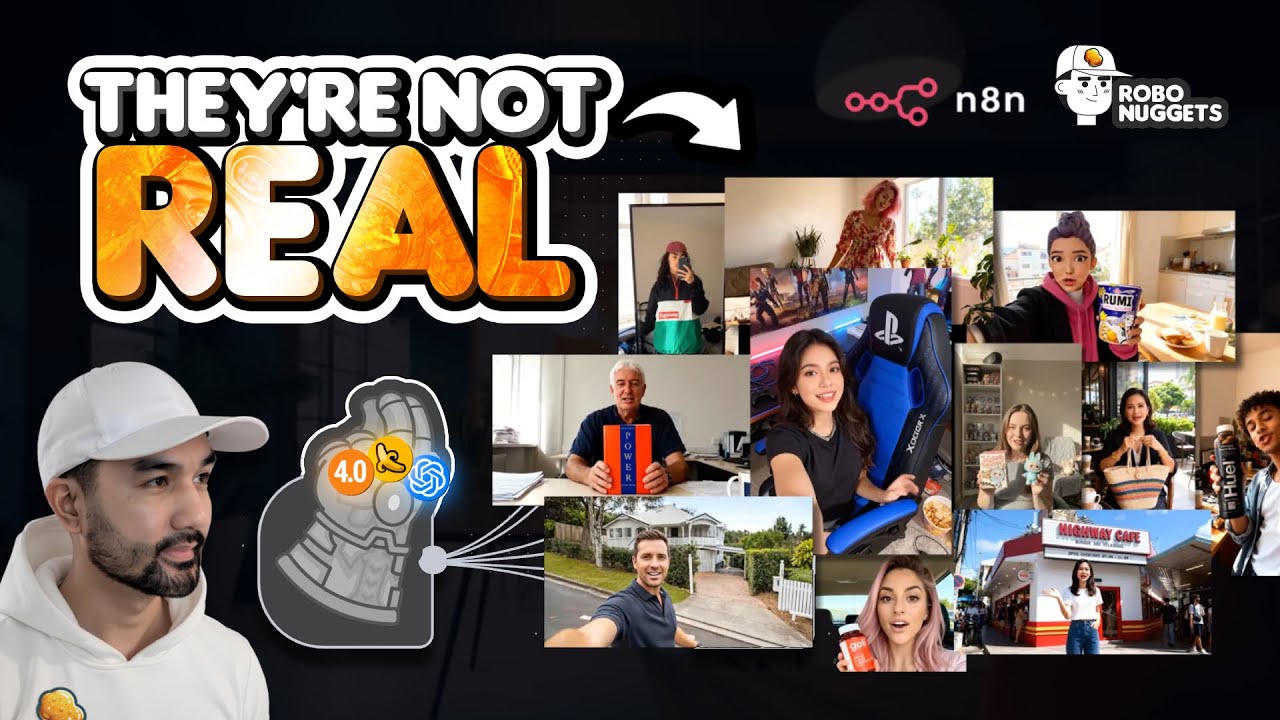

Creating user-generated content videos at scale used to require hours of editing, expensive creators, and constant production bottlenecks. Not anymore. With n8n UGC automation, you can generate unlimited AI-powered product videos for under $1 each—no filming, no influencers, no hassle.
This comprehensive guide walks you through building a complete n8n workflow that automatically creates realistic UGC-style videos using Seedream 4.0 for high-quality product images, Nano Banana for image editing, and Veo 3 for video generation. By the end, you’ll have a production system that turns simple product photos into engaging video ads perfect for TikTok Shop, Instagram Reels, and Facebook ads.
Why N8N UGC Automation Changes Everything for Marketers
The UGC video landscape has shifted dramatically. Real customers sharing authentic experiences feel more believable than polished brand messages, but creating enough volume to test and scale campaigns remains a major challenge. Traditional UGC production involves recruiting creators, managing revisions, and dealing with inconsistent quality—all while costs spiral out of control.
N8n UGC automation solves this bottleneck completely. Instead of waiting days or weeks for creator deliverables, you can generate multiple video variations in minutes. The workflow handles everything from initial image creation to final video rendering, giving you the flexibility to A/B test different angles, hooks, and product presentations without breaking your budget.
Key benefits of automated UGC creation:
- Infinite scalability: Generate 10 videos or 1,000 using the same workflow—no additional resources needed
- Cost efficiency: Production costs as low as $0.40 per video clip using Veo 3 Fast mode, with total video costs under $1
- Speed: Go from product photo to finished video in under 10 minutes
- Consistency: Maintain brand guidelines across all generated content automatically
- Testing velocity: Create multiple variations instantly to find winning creative angles
The automation revolution in content creation isn’t coming—it’s already here. Brands using n8n UGC workflows are publishing 10x more creative variations than competitors still relying on manual production, giving them a massive advantage in ad testing and optimization.
Ready to build your own system? Join the RoboNuggets community to access free n8n workflow templates, step-by-step setup guides, and a supportive community of automation experts who can help you get started today.
System Overview: How the N8N UGC Workflow Works
The n8n UGC automation system operates in three primary stages, each handling a specific part of the production pipeline. Understanding this architecture is essential for customization and troubleshooting as you scale your content production.
Stage 1: Input & Prompt Generation
The workflow begins with structured inputs stored in Google Sheets. Each row contains essential information: character descriptions, setting details, script copy, reference images (hosted on Cloudinary), aspect ratios, and scene counts. An AI agent analyzes uploaded product images to extract brand details, colors, and product descriptions, which then feed into dynamic prompt creation for downstream AI models.
Stage 2: Image Generation
Using the AI-generated prompts, the workflow creates starting frames through multiple pathways. The system can route through Seedream 4.0 for realistic product visuals, Nano Banana for image transformation, or ChatGPT’s image generation depending on your specific creative needs. This multi-model approach ensures variety in visual style while maintaining brand consistency.
Stage 3: Video Animation & Assembly
The final stage transforms static images into dynamic video clips. Prompts are sent to the Veo 3 model via KIE.ai, with each 8-second clip generated independently. The workflow then aggregates these clips and uses File.ai’s FFmpeg service to merge them into a single cohesive video. Throughout the process, Google Sheets updates automatically with production status, making it easy to track large batch jobs.
Key Inputs for Your UGC Videos
To maximize the effectiveness of your automated UGC creation, your Google Sheets input structure should include these critical columns:
- Character: Detailed description of the person or persona in the video (age, style, personality traits)
- Setting: Physical environment where the video takes place (kitchen, studio, outdoor location)
- Script: The actual spoken or text content, written in natural UGC style
- Image Reference: Cloudinary URLs for product photos or brand assets
- Aspect Ratio: Video dimensions optimized for target platform (9:16 for Stories/Reels, 16:9 for YouTube)
- Scene Count: Number of individual clips to generate (typically 3-5 for a 24-second video)
Pro tip: The more specific your character and setting descriptions, the more consistent your generated videos will be across multiple production runs. Think of these inputs as your creative brief—clear direction produces better results.
Output: Scalable MP4 Videos Ready for Ads
The workflow delivers final videos as MP4 files optimized for digital advertising platforms. Each video includes smooth transitions between scenes, maintains consistent visual branding, and adheres to platform-specific technical requirements. The final merged video is returned as a download URL that can be automatically sent to Telegram, Google Drive, or other connected storage.
These aren’t rough drafts—they’re polished, ad-ready videos that can go directly into Meta Ads Manager, TikTok Ads, or any other advertising platform. The workflow handles technical details like resolution, codec, and file size optimization automatically, so you can focus on creative strategy rather than video production technicalities.
Step-by-Step N8N Workflow Build
Building your n8n UGC automation from scratch might seem daunting, but breaking it into logical sections makes the process straightforward. This section walks you through each component, explaining not just what to build but why each part matters for your production pipeline.
Step 1: Input Section & AI Prompt Generation
The foundation of any effective automation is solid input handling. Start by connecting n8n to your Google Sheets data source. This node pulls in your structured video requirements and makes them available to downstream processes.
Next comes the intelligent prompt generation system. An OpenAI agent analyzes product images to extract details about brand, color, and product characteristics. This isn’t just simple text extraction—the AI understands visual context and can infer appropriate creative directions based on what it sees in your reference images.
Analyzing Reference Images
Configure your ChatGPT Vision node to receive image URLs from your Google Sheets. The prompt should instruct the model to identify:
- Product type and key features visible in the image
- Brand elements like logos, colors, and styling
- Suggested character types that would authentically use this product
- Environmental settings that complement the product aesthetic
The output from this analysis feeds directly into your prompt engineering system, ensuring each generated video feels authentic and on-brand.
Dynamic Prompt Creation
The AI Agent node is where creative magic happens. Structure your agent with a comprehensive system message that defines your UGC style guidelines. Include information about:
- Tone and voice (casual, enthusiastic, educational)
- Technical requirements (camera angles, lighting, movement)
- Platform-specific constraints (vertical video for mobile, subtitles for sound-off viewing)
Enable the “think” tool to allow the agent to reason through creative decisions before finalizing prompts. This results in more thoughtful, effective video directions.
Add a human-in-the-loop logging step here if you want to review prompts before video generation begins. For fully automated workflows, configure the node to proceed automatically while logging prompts to a separate Google Sheet for quality assurance review.
Step 2: Generate Starting Frame Images
This is where your workflow branches into multiple creative pathways. A Switch node evaluates your input data and routes to the appropriate image generation service based on your specified parameters.
Seedream Route: Use Seedream 4.0 when you need realistic product visuals with consistent brand styling. The model excels at maintaining visual consistency across multiple generated images—critical for building recognizable brand presence in your UGC content.
Nano Banana Route: Choose Nano Banana for image editing and enhancement tasks, particularly when you’re starting with an existing product photo that needs to be placed in a new context or environment.
ChatGPT Image Route: Select GPT-4o image generation when you need the most creative interpretations or when your prompts are more conceptual than specific.
Each route connects to its respective API via HTTP Request nodes configured with proper authentication and parameter handling. The n8n workflow manages these API calls seamlessly, including error handling and retry logic for reliability.
Seedream Subworkflow Breakdown
The Seedream implementation uses a subworkflow pattern for clean organization. Here’s the structure:
- HTTP Request Node: Sends prompt and reference images to fal.ai’s ByteDance Seedream model endpoint
- Wait Node: Pauses execution to allow image generation to complete (typically 10-30 seconds)
- Status Check Loop: Periodically polls the API until image generation status shows COMPLETED
- Result Retrieval: Fetches the final image URL once generation finishes
- Error Handling: Catches failures and routes to fallback or notification systems
This polling pattern is essential because image generation isn’t instantaneous. The wait-and-check approach ensures your workflow doesn’t proceed until assets are ready, preventing broken references in downstream video generation.
Step 3: Animate to Video Clips
With starting frame images generated, the workflow moves into video creation. A Filter node first validates that all required images are present and properly formatted—preventing errors that would waste expensive API credits.
The workflow then sends prompts to the Veo 3 model via KIE.ai, using the generated images as starting frames. Each scene defined in your original Google Sheets input becomes an individual video generation request.
The video generation parameters include:
- Starting Frame: Your AI-generated product image
- Motion Prompt: Detailed description of movement, camera motion, and action
- Duration: Typically 8 seconds per clip for optimal pacing
- Aspect Ratio: Matched to your target platform requirements
KIE.ai handles the actual video rendering, typically completing each clip in 2-3 minutes. The n8n workflow monitors these jobs through status polling, similar to the image generation process.
Bulk Video Processing Tips
When generating videos for multiple products or variations simultaneously, implement these optimization strategies:
- Batch Processing: Group related video generation requests to maximize API efficiency
- Reload Data Pattern: If you need to update inputs mid-workflow, use a “Reload Google Sheets” node to fetch the latest data without restarting the entire workflow
- Conditional Processing: Add filters that skip generation for rows marked “Complete” to avoid duplicating work
- Cost Monitoring: Log API usage to track per-video costs and optimize your model selection
Step 4: Combine & Finalize Videos
The final assembly stage brings everything together. An Aggregate node collects all generated video clip URLs for each production run. These clips are sent to File.ai’s FFmpeg merge service, which stitches them into one continuous video with smooth transitions.
The merge process handles technical details automatically:
- Consistent frame rates across clips
- Audio synchronization (if you’ve included audio in your generation)
- Proper codec configuration for maximum platform compatibility
- File size optimization to meet upload requirements
Once merging completes, the workflow updates your Google Sheets with a “Complete” status and the final video URL. You can extend this with additional nodes to automatically upload videos to Google Drive, send Slack notifications to your team, or even trigger social media posting workflows.
Costs Breakdown: Under $1 Per UGC Video
One of the most compelling aspects of n8n UGC automation is the economics. Traditional UGC production costs range from $50-500 per video depending on creator rates and revision cycles. Automated AI generation changes this equation dramatically.
Here’s the detailed cost structure for a typical 24-second UGC video (three 8-second clips):
| Component | Service | Cost per Unit | Units Needed | Total Cost |
|---|---|---|---|---|
| Image Generation | Seedream 4.0 | ~$0.02 | 3 images | $0.06 |
| Video Generation (Fast) | Veo 3 Fast | ~$0.30 | 3 clips (8s each) | $0.90 |
| Video Merging | File.ai FFmpeg | <$0.01 | 1 merge | $0.01 |
| Total | ~$0.97 |
For higher quality output, you can opt for Veo 3 Quality mode at approximately $2 per clip, which brings your total video cost to around $6—still a fraction of traditional UGC production expenses.
Scaling Economics: These costs remain consistent regardless of volume. Generating 10 videos costs $10, 100 videos costs $100. There are no bulk discounts, but also no per-creator negotiations, revision fees, or management overhead. The predictability makes budgeting for creative testing straightforward.
Cost Optimization Strategies:
- Use Fast mode for initial creative testing, Quality mode only for winning variations
- Batch generate multiple videos in single workflow runs to minimize overhead
- Cache frequently used product images in Cloudinary to avoid repeated analysis costs
- Monitor API usage through n8n execution logs to identify optimization opportunities
The ROI becomes even more attractive when you factor in speed. A traditional UGC video might take 3-7 days from briefing to delivery. Automated generation delivers finished videos in 10-15 minutes. For time-sensitive campaigns or rapid testing scenarios, this speed advantage can be worth far more than the direct cost savings.
Scaling to Bulk UGC Generation
The true power of n8n UGC automation emerges when you scale from single-video testing to bulk content production. This is where wrapper workflows and advanced orchestration techniques become essential.
A wrapper workflow sits above your core generation workflow, managing batch operations across multiple input rows. Instead of triggering video generation for each product individually, the wrapper:
- Loads all pending rows from Google Sheets
- Filters for items marked “Not Started” or “Ready for Processing”
- Loops through each item, triggering the main workflow
- Manages wait times between batches to respect API rate limits
- Logs completion status and any errors for review
Implement strategic Wait nodes between workflow executions to prevent API throttling. Most services limit concurrent requests, so spacing your batch jobs by 30-60 seconds prevents failures while maintaining high throughput.
Pro Tips for Production
Organizational Strategy: Pin critical nodes in your n8n canvas to create visual sections. Use color-coding and annotations to mark input handling, image generation, video processing, and output stages. When troubleshooting production issues at 2 AM, clear organization saves hours.
Prompt Engineering: Your AI-generated prompts determine output quality. Continuously refine your system messages based on results. Keep a “prompt library” in a separate Google Sheet with tested variations for different product categories, allowing quick swaps without workflow modifications.
Modular Subworkflows: Break complex processes into reusable subworkflows. Your Seedream image generation logic, for example, should be a subworkflow you can call from multiple parent workflows. This modularity makes updates easier—fix once, improve everywhere.
Error Recovery: Add error-catching nodes at each major stage. When an API call fails, log the error details and route to a notification system rather than crashing the entire batch. Production workflows should be resilient, continuing to process other items even when individual requests fail.
Multilingual Expansion: The workflow supports multiple languages seamlessly. One RoboNuggets community member successfully adapted the system for Tagalog content, demonstrating the flexibility for international markets. Simply adjust your prompts and script inputs—the image and video generation models work across languages.
Get the Free Template & Setup Guide
Ready to build your own n8n UGC automation system? The RoboNuggets community provides everything you need to get started today—no prior automation experience required.
What’s Included:
- Complete n8n workflow JSON file (import and customize)
- Step-by-step setup documentation with screenshots
- Google Sheets template with proper column structure
- Cloudinary configuration guide for image hosting
- API credential setup instructions for all services
- Troubleshooting guide for common issues
- Active community forum for questions and support
Required Services:
- n8n: Self-hosted or cloud instance (n8n.io)
- KIE.ai: For Seedream and Veo 3 access (kie.ai)
- File.ai: For video merging via FFmpeg (file.ai)
- OpenAI: For prompt generation and image analysis
- Cloudinary: Free tier works for most use cases (cloudinary.com)
Getting Started Steps:
- Join RoboNuggets: Visit RoboNuggets on Skool and create your free account
- Download the Template: Access the complete workflow JSON in the automation templates section
- Set Up API Keys: Follow the credential configuration guide to connect all services
- Import to n8n: Load the workflow template into your n8n instance
- Configure Google Sheets: Copy the provided spreadsheet template and connect it to your workflow
- Test with Sample Data: Run a single video generation to verify everything works
- Scale Production: Start batch generating UGC content for your campaigns
The RoboNuggets community includes automation experts who have already built and refined these workflows in production environments. Get help with troubleshooting, share your results, and discover advanced techniques that take your UGC automation to the next level.
Upcoming Enhancements: The workflow is continuously evolving based on community feedback and new AI model releases. Recent discussions focus on integrating OpenAI’s latest video generation capabilities alongside the existing Veo 3 implementation, giving users even more creative options. Join the community to access updates as soon as they’re released.
FAQ
What is n8n UGC automation?
N8n UGC automation is a no-code workflow system that uses AI models to automatically generate user-generated content style videos from product images and text descriptions. The system uses n8n as the orchestration platform, connecting services like OpenAI for prompt generation, Seedream or Nano Banana for image creation, and Veo 3 for video animation. It eliminates the need for human creators while producing authentic-looking product videos at scale.
Which AI models work best for UGC video generation?
The optimal model combination depends on your specific needs. For realistic product visuals, Seedream 4.0 delivers consistent brand styling. Nano Banana excels at image editing and transformation tasks. For video generation, Veo 3 Fast mode offers the best balance of quality and cost at approximately $0.40 per 8-second clip. Many successful workflows use multiple models in sequence—Seedream for initial images, then Veo 3 for animation—leveraging the strengths of each service.
How much does n8n UGC automation cost per video?
A typical 24-second video (three 8-second clips) costs approximately $0.97 using Fast mode generation, broken down as: $0.06 for image generation with Seedream 4.0, $0.90 for three Veo 3 Fast video clips, and less than $0.01 for video merging. Quality mode increases costs to about $2 per clip, bringing total video costs to around $6. These costs scale linearly—100 videos cost approximately $100 in Fast mode or $600 in Quality mode.
Can beginners build this workflow without coding experience?
Absolutely. N8n is designed as a no-code platform, using visual node connections instead of programming. The RoboNuggets template provides a pre-built workflow you can import directly, with all logic already configured. You’ll need to set up API credentials for various services (following provided guides), but no actual coding is required. The community forum offers support for newcomers, and most users successfully generate their first video within a few hours of starting.
What upcoming updates are planned for n8n UGC workflows?
The RoboNuggets community actively develops new capabilities based on emerging AI models and user feedback. Current discussions focus on integrating OpenAI’s latest video generation models as an alternative to Veo 3, potentially offering different creative styles or improved prompt adherence. Additional planned features include automated subtitle generation, batch variation testing for A/B campaigns, and direct integration with social media scheduling platforms. Join the community to participate in beta testing and get early access to new features.
Ready to transform your content production? Join thousands of marketers and automation enthusiasts in the RoboNuggets community. Get instant access to free n8n workflow templates, expert support, and a collaborative environment where you can master AI automation. Start building your UGC automation system today →